Top 5 Git Tips & Tricks

Becoming a Git power user is on a bucket list of every developer. Today we prepared 5 Git tips that will help you level up your workflow and bring you one step closer to Git mastery.
Modify the previous commit without changing the commit message
You’ve just committed your changes on your local copy with a detailed and thought-through message, but the moment you hit RETURN you realised you forgot to add that one change that really belongs there. If only there was a way to update the previous commit instead of creating a new one...
$ git commit --amend --no-edit
This command lets you modify the last commit without changing the commit message. The hash value will be updated, but there will be only one commit record leaving your local Git history nice and clean.
Keep your commits organised
You just wanted to fix that one feature, but in the meantime got into the flow, took care of a tricky bug and spotted a very annoying typo. One thing led to another, and suddenly you realised that you’ve been coding for hours without actually committing anything. Now your changes are too vast to squeeze in one commit...
$ git add -p <filename>
With git add -p (or git add --patch) you can choose which parts of code from a file you want to include in your commit. After running the command you will get the list of the options you can add to git add -p
By choosing s you can split the hunk into smaller pieces. From there you can simply choose the chunks you want to stage for commit (and omit those you don’t) by navigating with y and n (or go for any other option from the list).
Take me back to better times (when everything worked!)
Not your best day. You made changes you shouldn’t have and now everything is broken… Is there a way to undo those commits?
$ git reflog
With this handy command, you can get the record of all the commits done in Git.
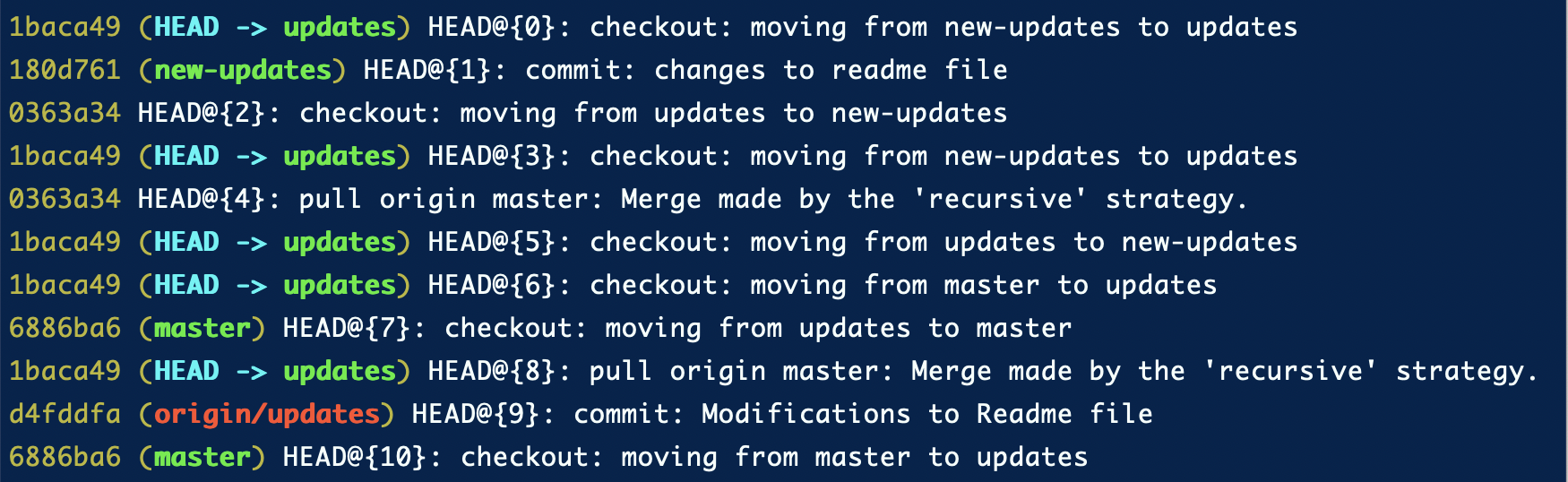
Now you just need to find the commit prior to the one that caused all the hassle. HEAD@{index} represents the specified commit, so just replace index with the correct number and run:
$ git reset HEAD@{index}
The default action for git reset is git reset --mixed. It means that the changes in your working directory will be preserved but not staged (since the index was modified to match the chosen commit, the changes are not in the index anymore).
Other options are:
$ git reset --soft
# Doesn’t modify the index or the working tree, leaving your changes staged for commit.
$ git reset --hard
# Use with caution, as it resets both the index and working tree. Uncommitted changes and all commits after will be removed.
And voilà, you can start over from the point when everything in your repository worked like a charm. Remember to use it only locally, as modifying a shared repository is considered a serious crime.
Let’s face those merge conflicts
You're on to a hairy merge conflict, but after comparing two conflicting versions you still have no idea which one is correct.
$ git checkout --conflict=diff3 <filename>
Resolving merge conflicts is not all fun and games, but this command can make your life a little bit easier. Often you need more context to decide which branch is correct. By default, Git shows you a version of the markers that contains versions of the two files that have a conflict. By choosing the option above you will be able to see the base version as well, which can hopefully save you some trouble. You can also set it as default with:
$ git config --global merge.conflictstyle diff3
💡 "Resolving merge conflicts is fun!" - said no one ever. The good news is that with GitLive you can get notified of conflicts before they occur. Gutter indicators show your teammates' changes in your editor in real-time. Check out this blog post to find out more.
Let autocorrect take care of it
You’re pretty proud of your breakneck typing speed, but at the same time you can’t even remember how many times you typed “git stauts” instead of “git status” and it leaves you mildly annoyed.
$ git config --global help.autocorrect <integer>
Git Autocorrect is a convenient option for all the impatient devs out there. The integer value represents a tenth of a second. Choosing 30 will give you 3 seconds to change your mind and stop the operation - otherwise Git will assume you meant the instruction most similar to the one you wrote. Don’t worry though, if you type something that is not even close to a Git command, Git will give up on guessing and print an error message instead.
Thanks for reading! Hope you found our Git-pick useful. Feel free to share your favorite hacks in the comments! Happy Git-ing!


